Find a bug? Please report it here.

Roulé - A Roulette Simulator : How to Play

The Game Screen

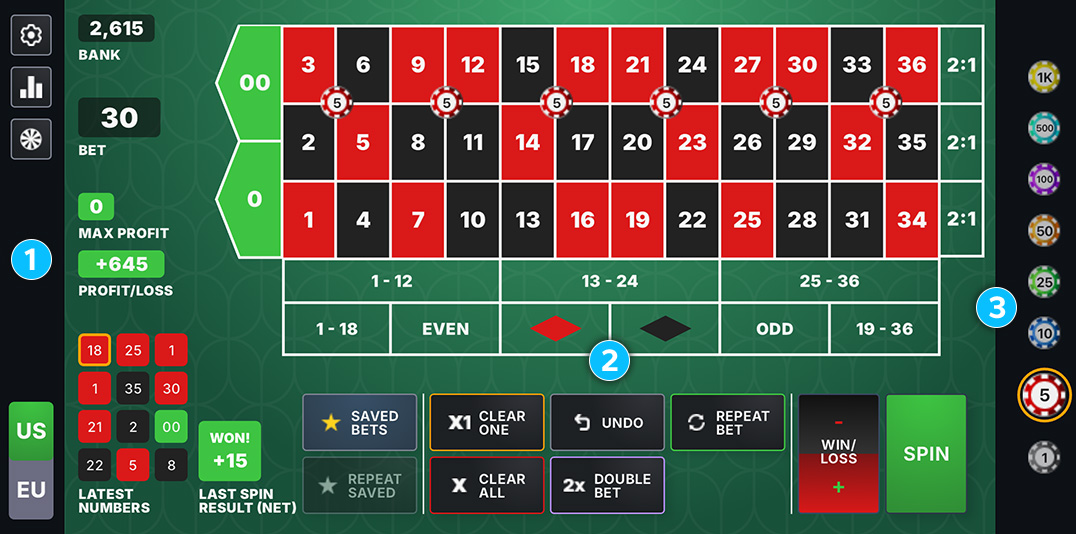
The main screen is divided into three areas: 1 the app bar with stats and controls, 2 the betting table, and 3 the chip selector.

Bank, Bet & Profit/Loss

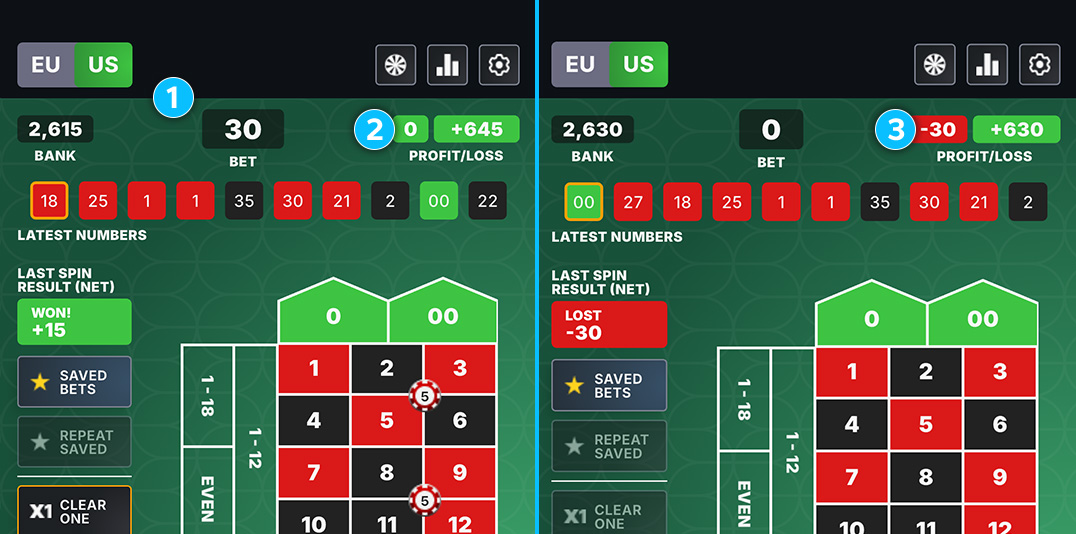
1 This section shows your current Bank balance, active Bet total, and session Profit/Loss.

2 The smaller number to the left of Profit/Loss shows your Max Profit — 0 meaning you are at max profit, while a negative number 3 shows how far from max profit you are.

This is commonly referred to as session profit and is a great way to determine your betting strategy. When it is 0, you’ve reached or exceeded session profit and a new betting session should start.

Placing Bets

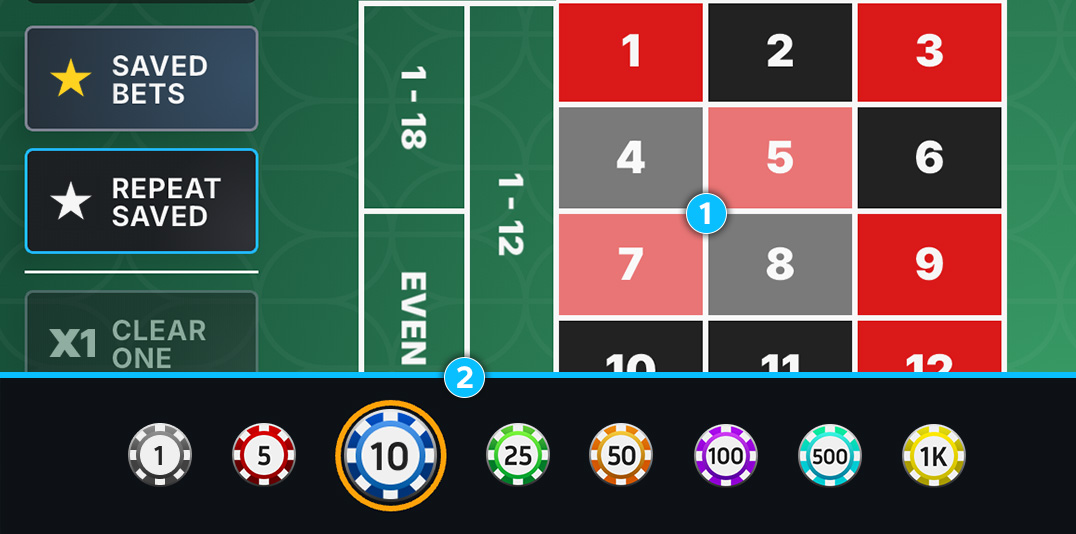
1 Tap any zone on the betting table to place your selected chip value 2 on that bet. Tap the same zone again to add more.

Sidebar Controls

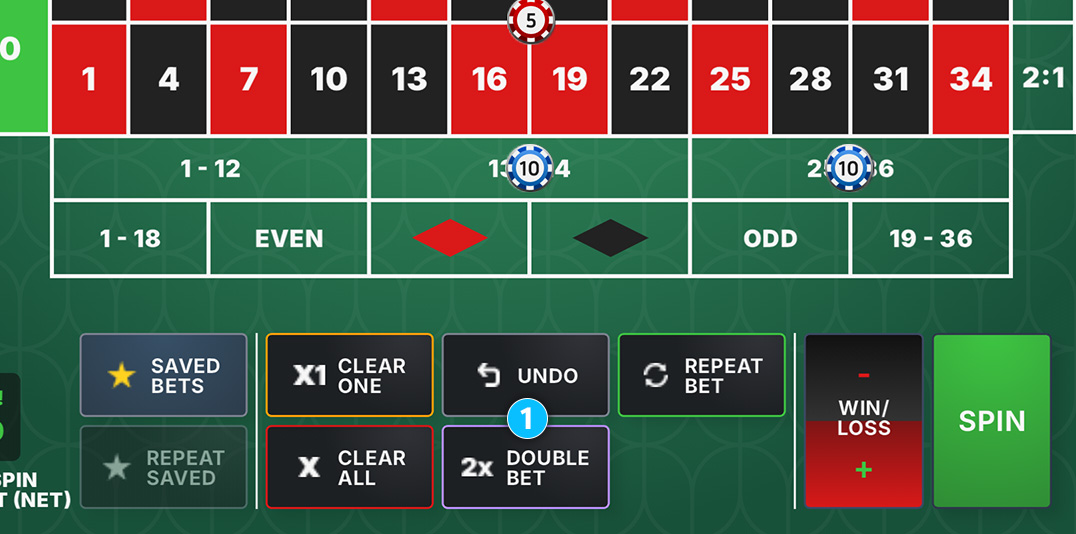
1 The sidebar runs along the left (or bottom) edge. These buttons are here to provide you with quick actions to help you place bets on the table.

Clear One Mode

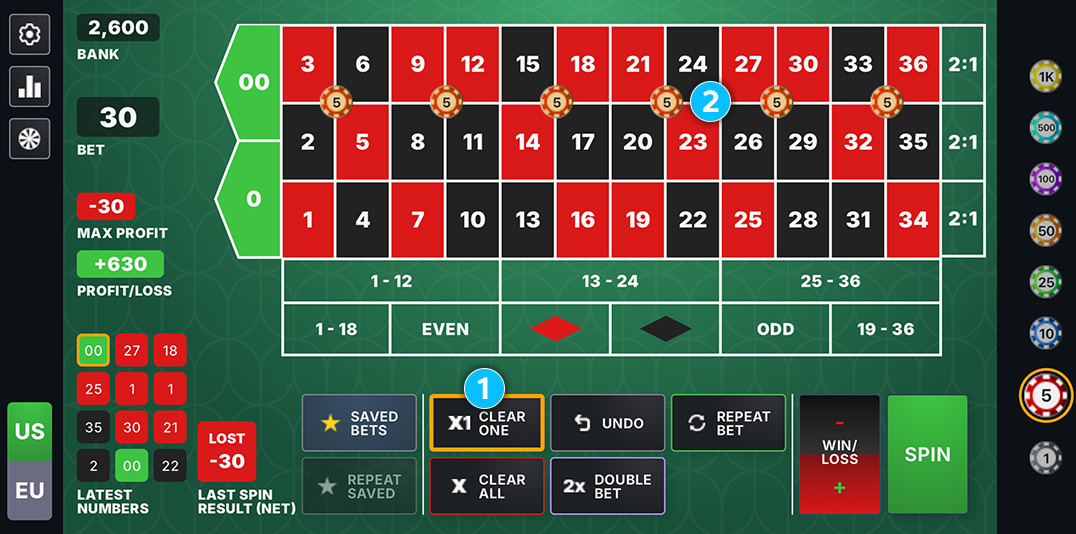
1 Tap the Clear One button to enter Clear One mode. While active, tapping any bet zone 2 removes one chip from that zone instead of placing a new one. Tap Clear One again to exit the mode.

Win/Loss Mode

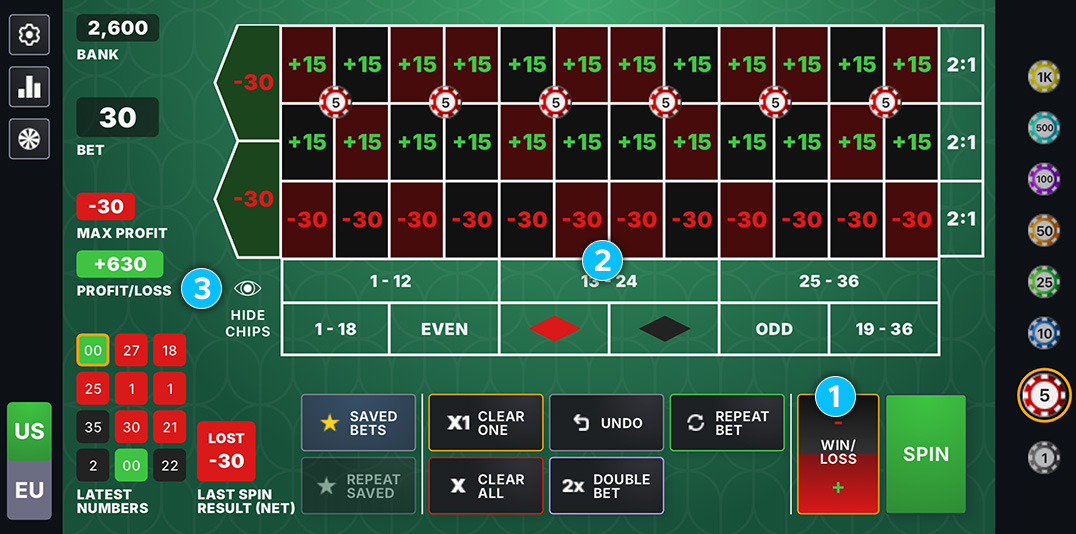
1 Tap the Win/Loss button to show the net win or loss of all numbers on the table 2 based on your current bets. You can hide or show the chips by clicking the “Eye Icon” 3 to better see the win/loss values.

Wheel Coverage

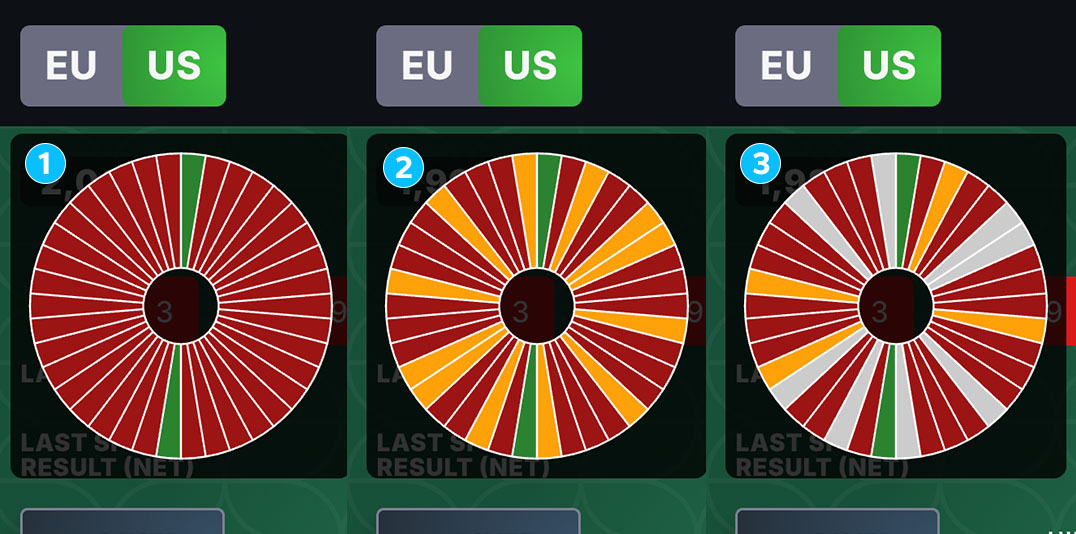
Tap the wheel icon in the app bar to show a coverage overlay in the corner. This indicates where your bets fall on the wheel. 1 Displays the wheel with no bets, and indicating 0, and 00 in green. 2 Displays winning slots in orange and losing slots in red and green. 3 Displays winning numbers in orange, pushes in light grey, and losing slots in red and green.
Saved Bets

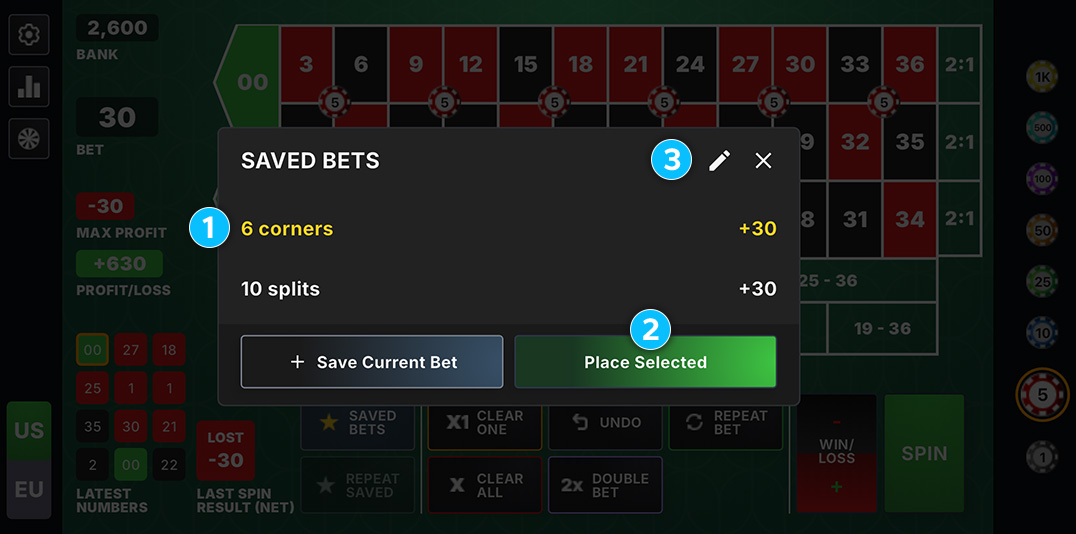
Save your current bet layout for quick recall later by tapping the Saved Bets button. Up to 25 configurations can be saved per wheel type (EU/US).

Tap a saved bet to select it 1, then tap Place Selected 2 to load it onto the table. Tap the pencil icon 3 to edit, reorder, or delete any saved bets.

The Spin Screen

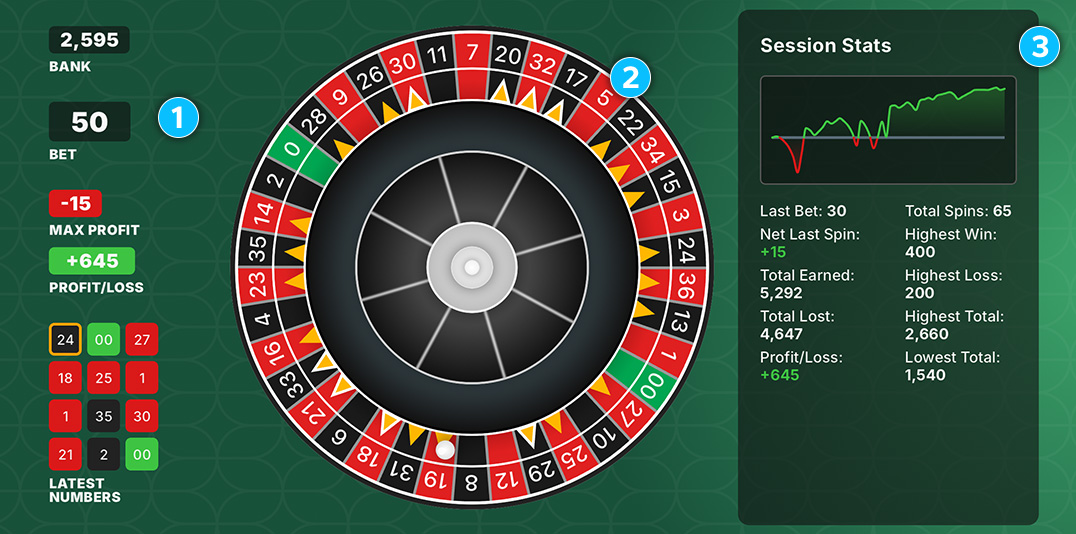
Tap Spin to launch the spin screen. Balance, Profit/Loss, and Session Stats 1 & 3 update in real time at the end of each spin.

Orange triangles on the wheel 2 indicate your winning numbers based on your current bet. Jackpot numbers are indicated with an orange triangle with white outline.

Statistics

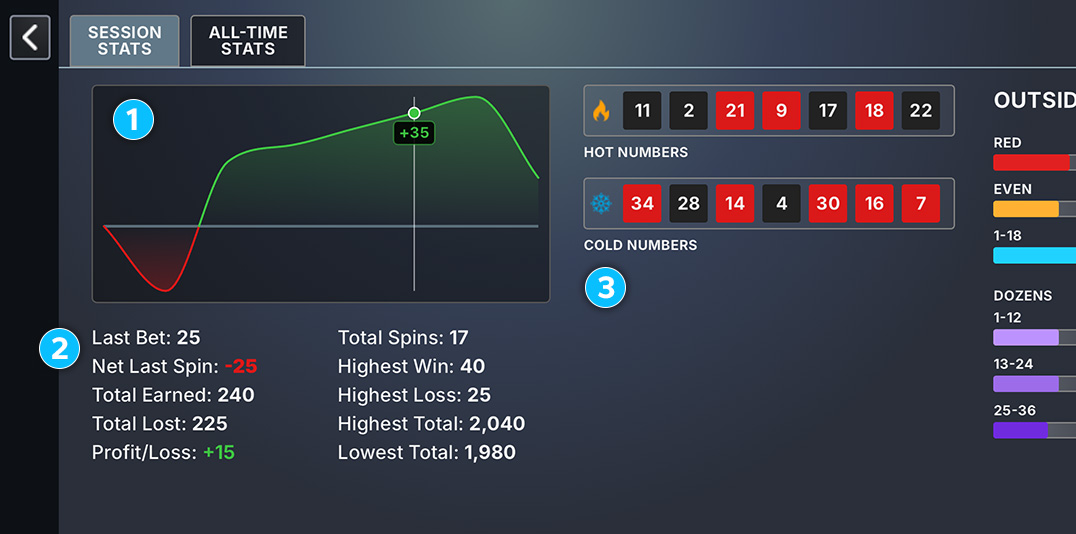
The stats screen tracks your session and all-time performance. View your balance history graph 1, spin outcomes 2, hot and cold numbers 3 category breakdowns, streaks, and hit percentages.

Settings

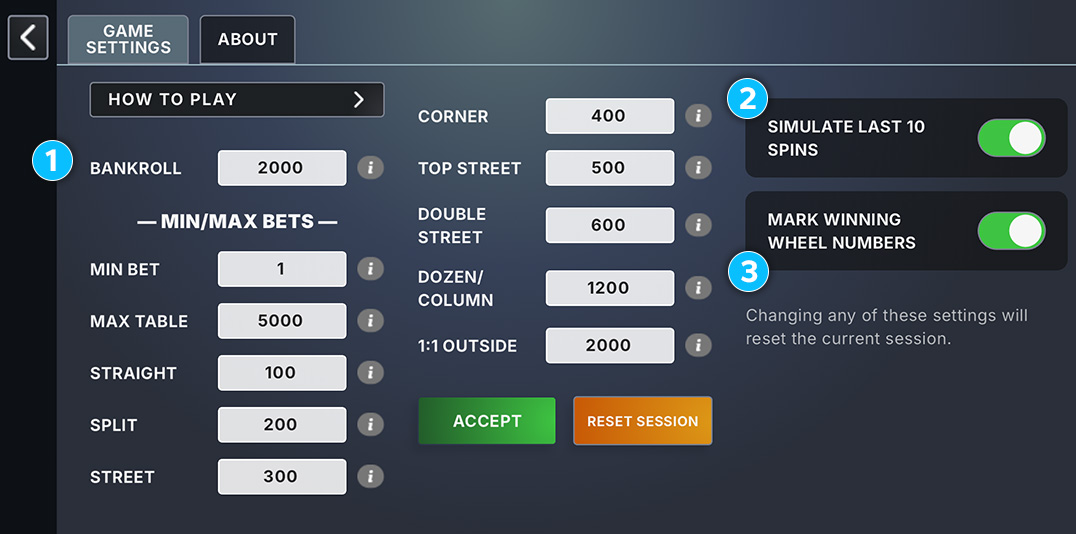
Set your starting bankroll, 1 and configure all of the table bets min/max settings. You may also toggle on or off the option to simulate the last 10 spins 2 after each reset and whether you want to mark winning numbers on the wheel 3.

Payouts

Straight Up (single number bet) 35:1
Split (2 number bet) 17:1
Street (3 number bet) 11:1
Corner (4 number bet) 35:1
Basket/Top Line (5 number bet on US wheels, 0, 00, 1, 2, 3) 6:1
Double Street (6 number bet) 5:1
Column/Dozen (12 number bet) 2:1
Even/Outside (18 number bet) 1:1

Find a bug? Please report it here.